Lisvo

Offline speech-to-text for Mac.

Drop in a meeting recording and get a transcript split by speaker, with a time on every sentence, in about 8 seconds. Your audio never leaves your Mac. No account, no cost.

  • 8 sec for an 8-minute recording
  • 12 MB download
  • $0 free and open source

Requires a Mac with Apple silicon and macOS 26 or later. Speed measured in Fast mode on an M4 Pro.

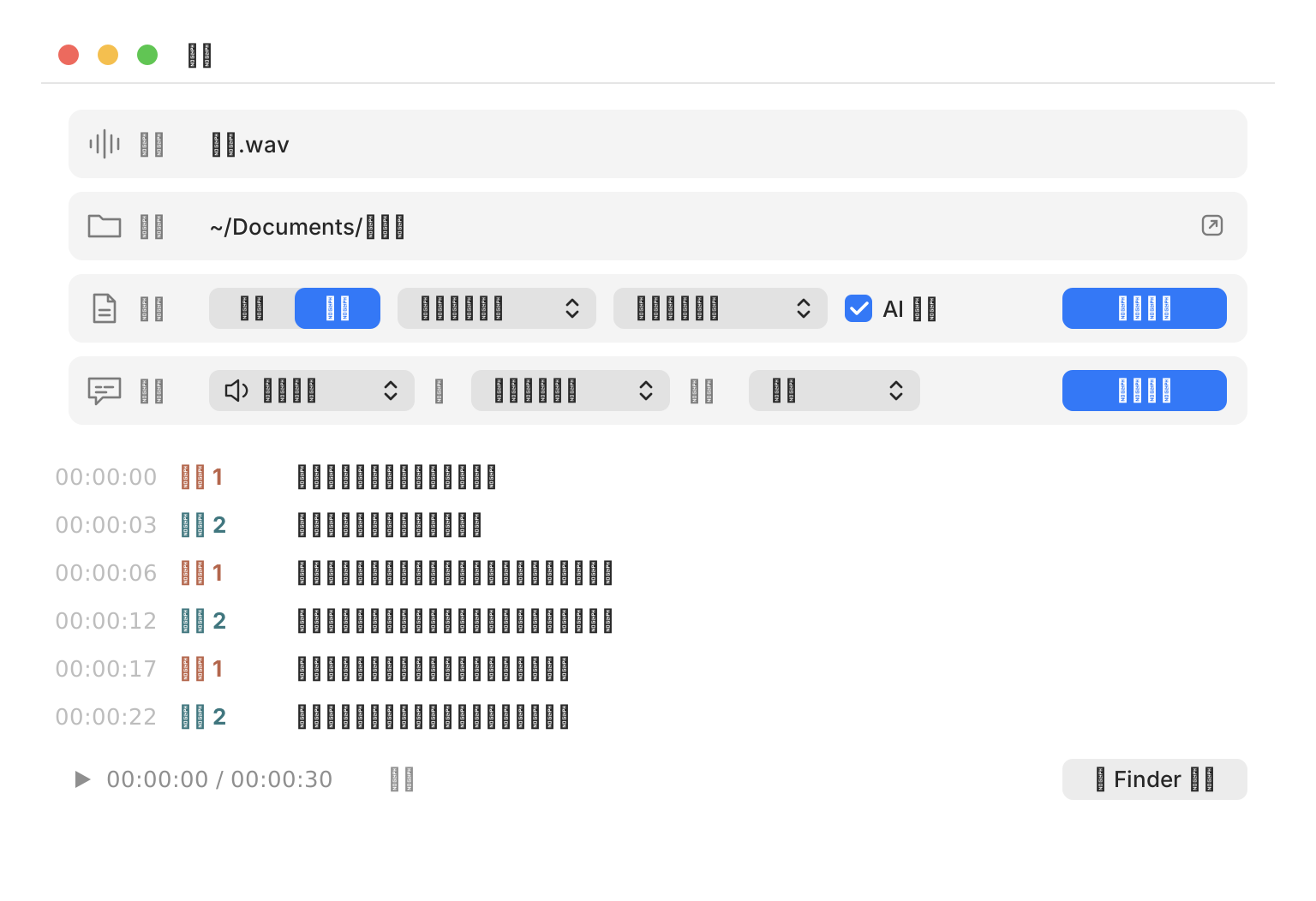
The Lisvo main window, with audio, output, transcription, and caption settings on top and a transcript split by speaker below

Offline, fast, minimal, Mac-native

Offline

Unplug the internet. It still works.

Recognition, speaker detection, translation, and polishing all run on your Mac. Your audio is never uploaded and there is no account to create. Tested with network access blocked, transcription and speaker detection finished as usual. You only need the internet to download models and language packs the first time.
Fast

An 8-minute recording in 8 seconds.

Measured on an M4 Pro with an 8-minute, two-person conversation: 7.5 seconds in Fast mode and 73 seconds in Accurate mode, with both speakers identified. Live captions update their draft text about every 0.1 seconds.

Minimal

One window, four rows of settings.

Drop a recording into the window and click Start. You never sign in, and there is no subscription or cloud setup to deal with.

Mac-native

Built on the engines inside your Mac.

Fast mode uses Apple's speech recognition, translation uses Apple's Translation, polishing uses Apple Intelligence, and speaker detection runs on the Neural Engine. The whole app is a 12 MB download.

I had piles of recordings to work through, so I built my own tool.

I turn a lot of recordings into text, then use it for notes and summaries. With that much audio, I wanted a tool that is fast and keeps the recordings on my own computer, so I built Lisvo. Recognition and speaker detection run on the Mac's built-in speech recognition and Neural Engine, and an 8-minute meeting is done in seconds to just over a minute. It works well for me, and I figured others could use it too, so I made it open source and free for everyone.

How Lisvo differs from MacWhisper

MacWhisper is a mature Mac transcription app. It can record meetings automatically, handle dictation, and connect to Notion, and if you need those features it is worth the price. If you just want your recordings and online meetings turned into text, here is how they differ:

Item Lisvo MacWhisper
Price Free Free tier; Pro is a one-time €64
Source code Open (Apache 2.0) Closed
Speech recognition Apple speech recognition (Fast), Whisper large-v3-turbo (Accurate) Whisper, Parakeet
Speaker detection pyannote segmentation + WeSpeaker voiceprints, on the Neural Engine Yes
Translation Apple Translation, on device Yes
AI polish / processing Apple Intelligence, on device Your own API keys, or local Ollama and LM Studio
Export formats TXT, timeline, SRT, VTT, JSON, MAXQDA TXT, Markdown, PDF, HTML, DOCX, SRT, VTT

MacWhisper details are from its official website (October 2026).

Split by speaker, with a time on every sentence

Fast mode uses the Mac's built-in speech recognition, needs no model download, and finishes an 8-minute recording in 8 seconds. Accurate mode uses Whisper large-v3-turbo and detects the language for you. Lisvo can work out how many people are speaking, or you can set the number yourself.

Click any sentence to play just that part of the original audio. Checking a misheard word no longer means dragging the playhead around.

  1. [00:00:12] 講者 1 Let's start with last week's progress.
  2. [00:00:18] 講者 2 The design files will be ready on Wednesday.
  3. [00:00:25] 講者 1 Then testing goes on Thursday.

Read the translation while the meeting goes on

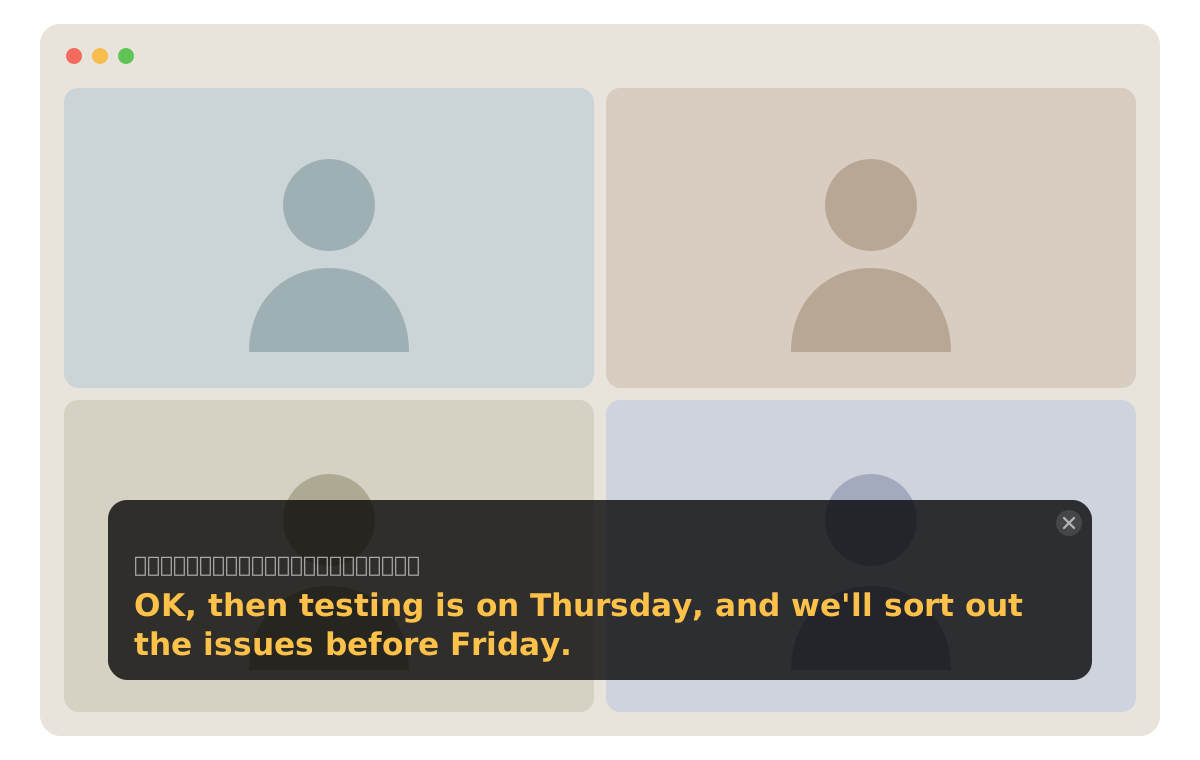
Choose Computer audio and anything your Mac is playing becomes captions: Zoom, Teams, YouTube, any app. Choose Microphone for live talks and face-to-face conversations. Captions float above your meeting window, and the draft text updates about every 0.1 seconds.

Captions can be translated into Traditional Chinese, English, Japanese, or Korean. For speakers who mix Chinese and English, choose Chinese–English: Chinese parts are translated into English and English parts into Chinese. Translation also runs locally.

The Lisvo floating caption window over an online meeting, with the original text on top and the yellow translation below

Research, video, meeting notes: the files are ready

Each transcription gets its own folder: plain text split by speaker, a timeline with one sentence per line, SRT and VTT subtitles, a JSON file with all the data, and a file you can import straight into MAXQDA, so qualitative research needs no format conversion.

Turn on AI polish for an extra version with typos fixed, punctuation added, and filler words removed. The original transcript and timings stay untouched. Polishing uses Apple Intelligence on your Mac and is not uploaded either.

Weekly sync 2026-10-30 1405

  • Weekly sync.txt
  • Weekly sync_時間軸.txt
  • Weekly sync_maxqda.txt
  • Weekly sync.srt
  • Weekly sync.vtt
  • Weekly sync.json
  • Weekly sync_潤飾.txt

Record on your iPhone, get the transcript on your Mac

Set up a Shortcut once on your iPhone. Share a Voice Memos recording and it is saved to the Lisvo/收件 folder in iCloud Drive. While Lisvo is open on your Mac, it transcribes the file and saves the transcript back to iCloud, ready to read in the Files app. This is the only feature that goes through iCloud. Everything else stays on your Mac.

  1. iPhone Voice Memos → Share
  2. iCloud Drive / Lisvo / 收件
  3. Lisvo on your Mac transcribes it

macOS blocks it the first time

Lisvo is not notarized by Apple. Notarization requires the paid Apple Developer Program, at US$99 a year, which this project does not pay for, so macOS shows a warning the first time you open it. Many free, open-source Mac apps from independent developers ship this way. Do this once and it opens normally afterward:

  1. Unzip the download, drag Lisvo.app into Applications, and double-click it. When the warning appears, click Done.
  2. Choose Apple menu > System Settings, then click Privacy & Security in the sidebar.
  3. Scroll down to Security, click Open next to Lisvo, then click Open Anyway. This button is available for about an hour after you try to open the app.
  4. Enter your login password, then click OK.

These steps follow Apple's guide, Open a Mac app from an unknown developer.

Questions People Ask

Is there a free, offline speech-to-text app for Mac?

Yes. Lisvo is a free, open-source speech-to-text app for Mac. Recognition, speaker detection, and translation run on your Mac, and once the models are downloaded it works without the internet. It needs a Mac with Apple silicon and macOS 26 or later.

How do I turn a meeting recording into a transcript?

Open Lisvo, drop the recording or video into the window, and click Start. The transcript is split by speaker with a time on every sentence, and saved as plain text, a timeline, SRT, VTT, and JSON. An 8-minute recording takes about 8 seconds in Fast mode on an M4 Pro.

Does Lisvo cost anything?

No. Lisvo is free, and its source code is on GitHub under the Apache 2.0 license.

How is Lisvo different from MacWhisper?

MacWhisper Pro is a one-time €64 purchase and does more, such as automatic meeting recording, dictation, and Notion integration. Lisvo is free and open source, focuses on turning recordings into transcripts and on live captions with translation, and also exports a file you can import into MAXQDA. If transcription is all you need, Lisvo covers it.

Does it really work fully offline?

Yes. Once the models and language packs are downloaded on first use, recognition, speaker detection, translation, and polishing need no internet. Tested with network access blocked, transcription and speaker detection finished as usual.

Is my audio uploaded?

No. Recognition, speaker detection, AI polish, and translation all run on your Mac. Only the iPhone inbox feature sends recordings and transcripts through your own iCloud Drive.

Which languages are supported?

Recognition supports Chinese (Taiwan), Cantonese, English, Japanese, and Korean, and Accurate mode can detect the language. Live translation supports Traditional Chinese, English, Japanese, and Korean, plus Chinese–English in both directions.

What is the difference between Fast and Accurate mode?

Fast mode uses the Mac's built-in speech recognition, needs no model download, and shows text the soonest, but you choose the language first. Accurate mode uses Whisper large-v3-turbo, downloads its model on first use, and can detect the language.

Why does macOS say the app can't be opened?

Lisvo is not notarized by Apple, so macOS blocks it the first time. Go to System Settings > Privacy & Security, click Open under Security, then Open Anyway. After that it opens normally.

Is there a Windows or Intel Mac version?

No. Lisvo relies on speech recognition added in macOS 26, and the app is built only for Apple silicon.

Download Lisvo for free

A 12 MB download. Requires a Mac with Apple silicon and macOS 26 or later.